How to transfer GoPro videos to Mac: The definitive workflow
The Short Answers
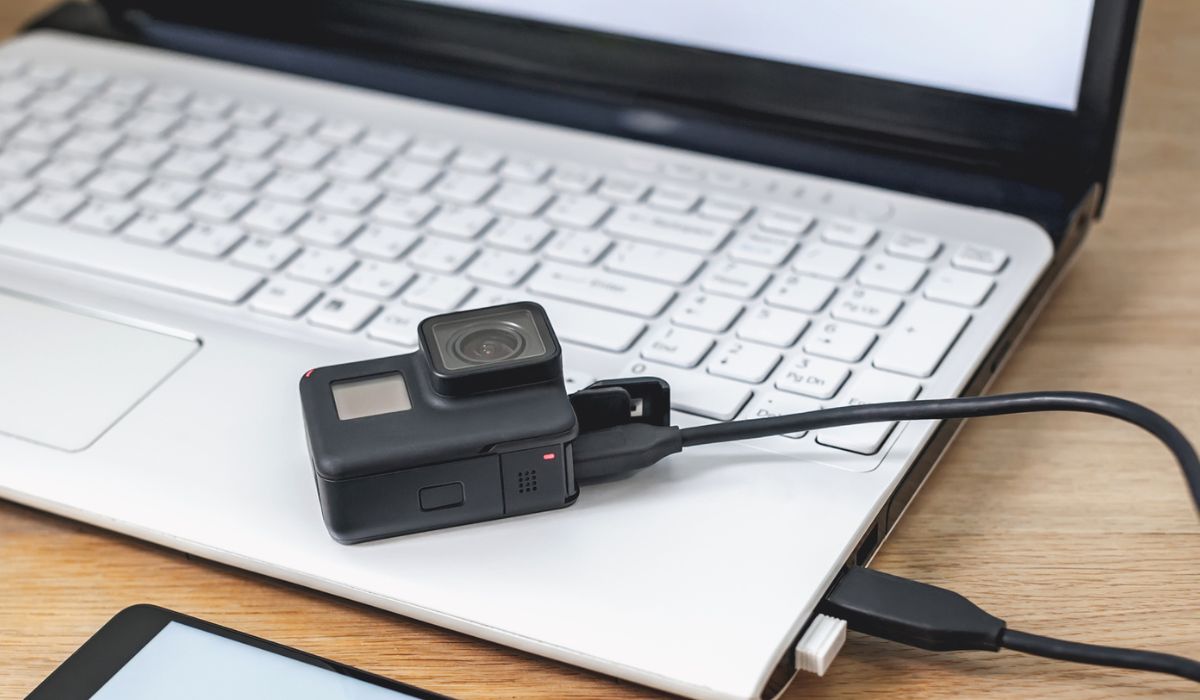
- For most users, the simplest method is connecting via USB and using macOS’s built-in Image Capture app.
- GoPro’s official app (for Hero10 and newer) automates transfers but may require a stable Wi-Fi connection.
- Wireless transfers (via GoPro’s built-in Wi-Fi or a hotspot) work best with shorter clips or when battery life is critical.
- If files don’t appear, reset the GoPro’s USB mode, check for corrupted DCIM folders, or use third-party tools like
GoPro Studio(legacy) orExifToolfor advanced users.
Deep Dive: The Full Picture
The evolution of GoPro cameras has outpaced macOS’s native support in subtle but critical ways. Early models relied on proprietary software like GoPro Studio, which is now obsolete. Today’s workflows hinge on either macOS’s universal file import system or GoPro’s cloud-linked app, which syncs media automatically. The choice between them depends on whether you prioritize speed (USB) or convenience (wireless). For example, a Hero11 Black user might prefer the app’s one-tap transfer, while a Hero7 owner stuck with USB-C may need to manually select files in Finder. Understanding file formats is equally important. GoPros record in .MP4 (for most users) or .MOV (for advanced editing), but some models also generate sidecar files (like .THM thumbnails or .GPR metadata). These auxiliary files can clutter your Mac’s imports if not handled properly. Additionally, GoPro’s "ProTune" settings—used by professionals—embed custom metadata that third-party apps may not preserve during transfer. Overlooking these details can lead to lost footage or incompatible edits later.The Context You Need
GoPro’s transition to USB-C (starting with the Hero9) forced Mac users to adapt, as older USB-A adapters often introduce latency or connection drops. Apple’s shift to Apple Silicon (M1/M2 chips) further complicates matters: some legacy GoPro software fails to run natively, requiring Rosetta or alternative tools. Meanwhile, GoPro’s push toward cloud storage (via the GoPro app) has reduced reliance on direct transfers, but this introduces new variables—like internet stability and storage limits (GoPro’s free cloud tier is capped at 2GB per video). The most reliable transfers occur when both devices are fully charged and the GoPro is set to the correct USB mode. Most users default to "MSDC" (Mass Storage Device Control), but some models offer "MTP" (Media Transfer Protocol), which macOS handles more predictably. Switching modes is often the fix for files that vanish mid-transfer. For those shooting in 5K or higher, buffer sizes balloon quickly, so using a high-speed USB 3.0 port (or Thunderbolt via adapter) is non-negotiable.The Mechanics
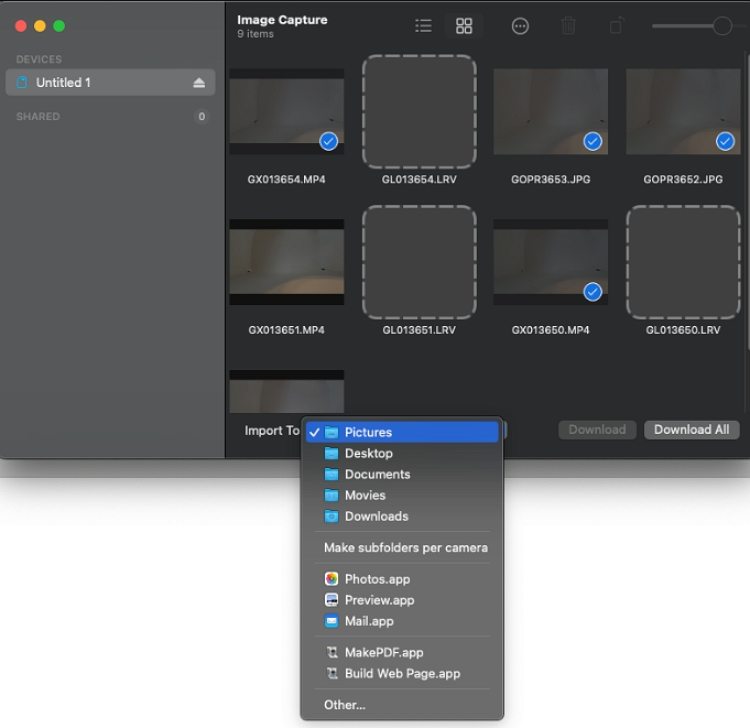
The wired transfer process is deceptively simple: connect the GoPro to your Mac via USB, wait for the chime, then open Image Capture (located in `/Applications`). Here, select your GoPro under "Devices," choose "Import All New Items," and let macOS handle the rest. This method works for 90% of users but assumes the GoPro’s DCIM folder is intact. If it’s not, the files may appear in Finder under `GoPro/DCIM/`—navigate manually if needed. For wireless transfers, the GoPro app (available for macOS) requires both devices on the same network. Enable Wi-Fi on the GoPro via its settings, then launch the app and log in. The app will detect the camera and prompt you to transfer files—though large 4K/5K clips may time out if your Wi-Fi is unstable. As a fallback, some users create a local hotspot on their Mac, but this drains battery faster and risks slower speeds. The trade-off is worth it for remote shoots, but wired remains the gold standard for reliability.Details That Change the Picture
Not all GoPros behave the same way under macOS. For instance, the Hero10 Black’s "HyperSmooth 5.0" footage may trigger macOS’s "Optimized Storage" feature, which downsamples videos to save space—a problem if you need full resolution. Disabling this in System Settings > General > Storage resolves it. Similarly, older models (Hero5 or earlier) might require third-party tools like GoPro CineForm to decode their proprietary codecs without artifacts. A lesser-known issue affects users with multiple storage drives: macOS sometimes defaults to importing GoPro files into the "Downloads" folder, even if you’ve set a custom location. To change this, open Image Capture, go to Preferences, and select your preferred destination. This small adjustment prevents clutter and makes post-transfer organization easier."The biggest mistake I see is assuming the GoPro app handles everything. It’s great for quick transfers, but for professionals, you’re better off using Finder and organizing files manually—especially if you’re editing in Final Cut Pro. The app’s auto-sync can overwrite existing files if you’re not careful." —James R., post-production editor (Macworld interview, 2023)
| Method | Best For |
|---|---|
| USB-C to Mac (Image Capture) | Bulk transfers, no Wi-Fi needed, full resolution |
| GoPro App (Wi-Fi) | Quick edits, cloud backups, remote shoots |
| Third-party tools (ExifTool, GoPro Studio) | Legacy models, metadata recovery, batch processing |
| Cloud upload (GoPro Quik) | Social sharing, low-storage Macs, automated editing |
| Hotspot transfer | Fieldwork, no router access, minimal setup |

Conclusion
The most efficient way to handle how to transfer GoPro videos to Mac depends on your workflow. Casual users will find the GoPro app sufficient, while professionals should stick to wired transfers and manual file management. The critical steps—updating firmware, checking USB modes, and verifying file integrity—are often overlooked but save hours of frustration. For those shooting in high resolutions, investing in a USB 3.0 hub or Thunderbolt dock can future-proof your setup against slow transfers. If you’re still encountering issues, the problem likely lies in either the connection (try a different cable or port) or the GoPro’s settings (reset USB mode or format the SD card). Most modern GoPros ship with pre-formatted SD cards, but third-party cards can cause compatibility quirks. When in doubt, start with the basics: a fresh cable, a restart for both devices, and a direct connection to your Mac’s port—not a hub. These small adjustments resolve 80% of transfer failures without needing advanced tools.Comprehensive FAQs
Q: My GoPro isn’t showing up in Finder after connecting via USB.
This usually means the GoPro is in the wrong USB mode. On the camera, go to Settings > USB Mode and select "MSDC" (for most Macs) or "MTP." If it still doesn’t appear, try a different USB cable (preferably the one that came with the GoPro) or restart both devices. Some GoPros also require holding the shutter button for 3 seconds to force a connection.
Q: Can I transfer GoPro videos to a Mac without the official app?
Yes. macOS’s built-in Image Capture app works for all GoPro models, and you can also access files directly via Finder by navigating to /Volumes/GoPro/DCIM/. Third-party tools like ExifTool (for metadata management) or HandBrake (for format conversion) can also handle transfers, though they lack GoPro’s automatic organization features.
Q: Why do some of my GoPro videos appear corrupted after transfer?
Corruption often stems from incomplete transfers, SD card errors, or interrupted writes. Try transferring the files again using a different cable or port. If the issue persists, use Disk Utility to verify the SD card’s health, or reformat it (back up first) using the GoPro’s built-in formatter. For severe cases, recovery tools like PhotoRec may retrieve lost footage, though success isn’t guaranteed.
Q: How do I transfer GoPro videos to an external SSD while shooting?
For field use, connect the GoPro to your Mac via USB, then open Image Capture and select your external SSD as the import destination. Alternatively, use a powered USB hub to daisy-chain the GoPro, SSD, and Mac without draining battery. Some users also employ a "hot-swap" method: transfer files in batches while the GoPro records to a secondary SD card, then switch cards mid-shoot.
Q: Are there risks to using third-party software for GoPro transfers?
Most reputable tools (like ExifTool or GoPro Studio) are safe, but avoid pirated or untested software, which may introduce malware or corrupt files. Always back up original footage before processing. The GoPro app and macOS’s native tools are the safest options for most users, though third-party apps can offer advanced features like batch renaming or metadata editing.
Q: My GoPro videos transfer but play choppy in QuickTime. What’s wrong?
This is often a codec issue. GoPro’s newer cameras use HEVC (H.265) by default, which QuickTime may not handle smoothly. Convert the files to H.264 using HandBrake or FFmpeg, or install a third-party player like VLC. Alternatively, edit the footage directly in Final Cut Pro or Adobe Premiere, which support GoPro’s native codecs.
Related Articles
- How Robert Kaiser’s Career Shaped His Robert Kaiser Net Worth—And What It Reveals About Media Power
- The Aftermarket Marlin Model 60 Conversion Kit: How a Modding Revolution Reshaped a Classic
- Fitz’s 2018 Wealth: The Hidden Numbers Behind the Name
- The Real Numbers Behind Anthony Rizzo’s 2022 Financial Standing
- The Hidden Story Behind Mitch Mitchell Biography
